
Linux File System
Not Just Commands Let's Deep Dive into Linux File System

When we talk about Linux File System a question arises that what is Linux File Syatem?
For answering this question I'm writing this blog.
What is Linux File System ?
Linux File System is just a structured way Linux organizes, retrives and store data on a storage device such as SSD, HDD and any other storing data device. Without File system an OS/linux would not know where a file start and where another start.
In linux, everything is store/managed in a single unified tree structure. Linux top directory knon as root directory represented by a (/). Linux "mounts" different drives or partitions as folders within this single tree.
Linux Directory Hierarchy
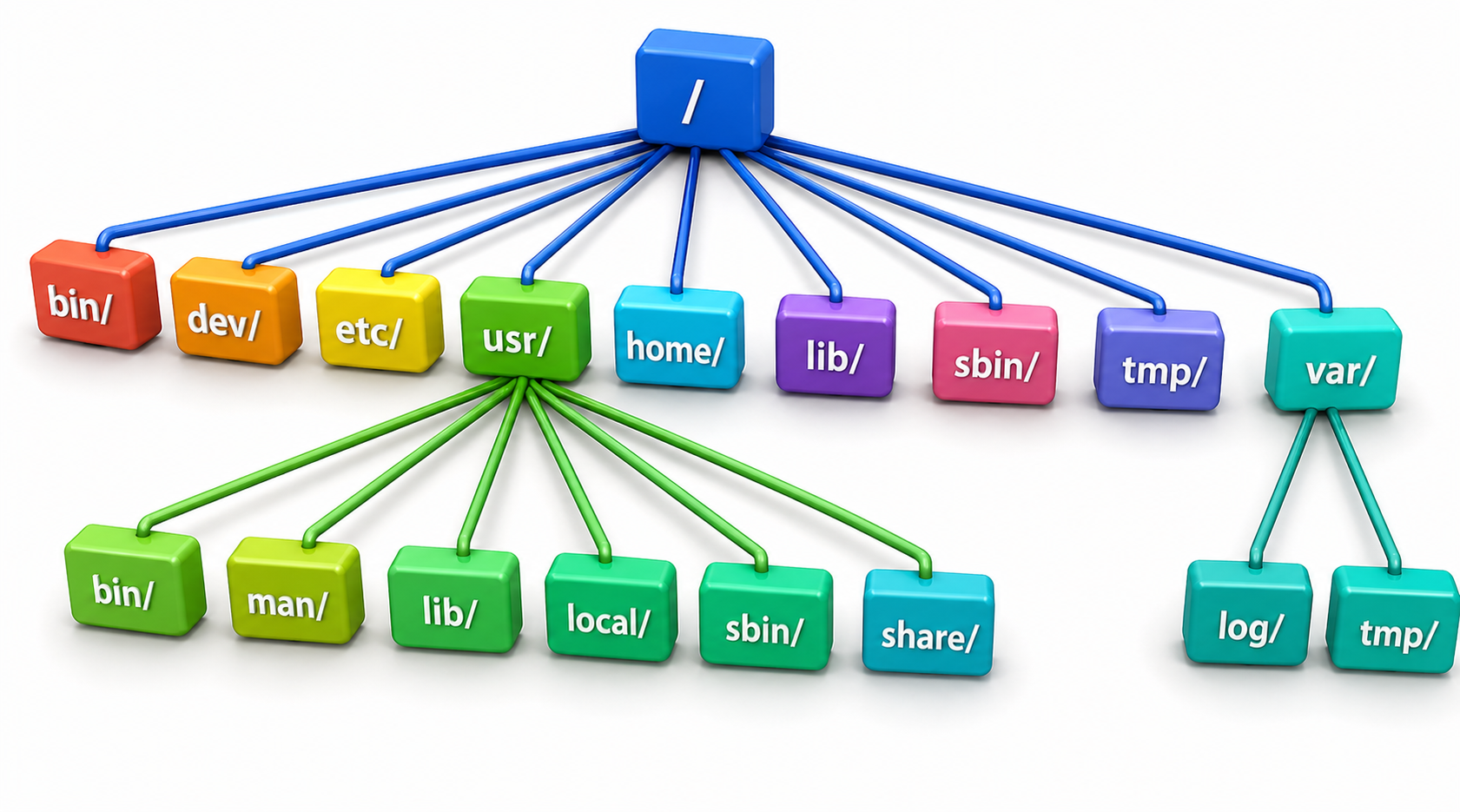
"/" (ROOT) : The top-level directory. Everything on your system lives here.
/bin: Contains ready-to-run executable programs, including most of the basic Unix commands such as ls and cp. Most of the programs in /bin are in binary format, having been created by a C compiler, but some are shell scripts in modern systems. All users can execute /bin commands. Some Comman commands you will see in /bin directory are-:
File Management Commands: cp, mv, rm, rmdir, ls, mkdir, touch
System Shells: bash, sh
Basic Utilities: cat, echo, ping, kill
/dev: The
/devdirectory is one of the most fascinating parts of Linux because it perfectly illustrates the philosophy that "Everything is a file." In Linux,/dev(short for Devices) is not a folder on your hard drive where actual files are stored. Instead, it is a virtual file system that contains special files representing every piece of hardware connected to your computer./etc: This core system configuration directory contains the user password in encrypted form, boot, device, networking, and other setup files. This is the nervous system of any linux system it conatins host-specific, system-wide configuration files in plain text form that tell the operating system, services, kernel parameters, network stack, boot process, security, and installed software exactly how to behave.How /etc controls system behavior
Linux do not do everything by itself. It first read the instructions/txt files that already presented in the /etc directory. These files tells the system what should do. Also known as user management files.
Who can use the computer
How to connect to the internet
Which programs should start automatically
How the hard disk should be used
Security rules, and much more
/etc = Instruction Manual for your Linux machine.
Every major part of the system (users, network, disks, services, security, boot process) reads its rules from files inside /etc.
If you want the system to behave differently → you change the text files in /etc.
It is the nerve center or control room of the entire operating system.
/usr: The main place for user programs and data.
Most installed software, libraries, documentation are present in this dir.
Biggest directory on most systems
6. /home: Personal folders for normal users
User daily work saved here.
In this dir you mainly see the user files, downloads and documents.
7. /lib: Short of library
Essential libraries (support files for programs)
Also contains Shared libraries (.so files)
There are some important dir tht we will discuss in another blog. In this blog we will discuss DNS configuration now.
DNS - Stand for Domain Name System
DNS is just a translator that translates ip adresses to simple name like google.com to something 127.00.11 so a computer can connect to the server we use DNS because we can remember ip adresses easily so we use DNS.
Main Location of DNS in linus is in /etc directory that is /etc/resolve/conf this is the coreDNS configuration in any linus system.
Full DNS resolution flow
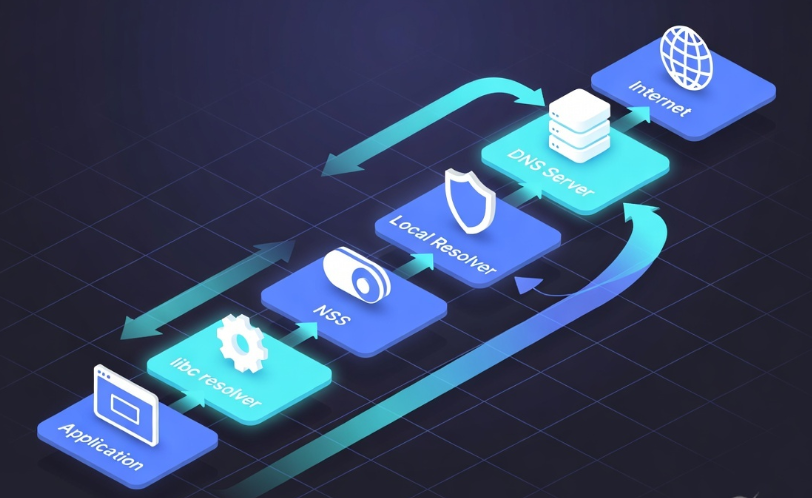
Application call (browser, ping google.com, curl) Programme that want reach a website.
libc resolver (part of glibc)
The standard library in Linux that handles name resolution for applications.NSS(Name Server Switch)
Resolver reads /etc/resolve/conf
Build DNS query
Send to DNS server
Recursive resolution (server-side)
Response received
Application continues
Permission structures and security implications
The foundation of permission structure in Linux
In Linux every file and directory has:
Owner(User who created this)
Group(A group of users)
Others(Everone else in the system)
Each category have basic three commands:
read
write
execute
Representation of these three commands in linux look like this:
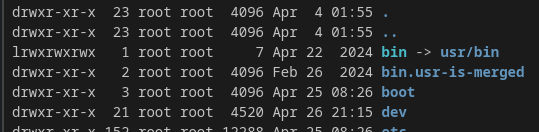
Lets discuss about drwxr-xr-x:
If first character is: - it means it is a regular file, else if first character is d it means directory else first character is l it means symlink etc.
rwx: Means User have the permission of read, write and execute.
r-x: It means a group belogs from a owner group have the permissions of reading and execution.
r-x: means other users have the same permission that group have reading and execution.
What is /proc?
/proc is a virtual (pseudo) filesystem. It doesn't store real files on your hard disk. Instead, the Linux kernel dynamically generates its contents on the fly when you read them.
It gives you a window into:
Running processes
System hardware
Kernel internals
The most important part for processes is:
Every running process has its own numbered subdirectory: /proc/
(where PID = Process ID, a unique number assigned by the kernel).
Special Entries You Should Know
/proc/self
This is a magic symlink that always points to the current process that's reading it.
Example: When you run a command, /proc/self points to that command's own /proc/PID directory.
Very useful in scripts and programs.
/proc/[PID] (e.g., /proc/1234) This directory contains detailed information about one specific process.
Conclusion
The Linux filesystem is a beautifully structured, unified hierarchy that brings order, security, and simplicity to data management. From the root directory (/) to critical locations like /etc (configuration), /dev (devices), /proc (processes), and /home (user data), every directory serves a specific and important role.
Understanding concepts such as permissions (rwxr-xr-x), DNS configuration in /etc/resolv.conf, and the virtual nature of /proc and /dev gives you a solid foundation for working effectively with Linux.
As you continue your Linux journey, always remember: the more you understand the filesystem, the more control you gain over the system.
Stay curious, practice regularly, and in the upcoming posts, we’ll explore even more powerful aspects of Linux administration.
Thank you for reading!